Semantic Bridge Validation
There is a validation framework built into the Semantic Bridge to allow users to validate and define rules to check a Metric View before importing it to Tabular. This diagnostic reporting is shared at every stage of the translation pipeline, from first deserializing the Metric View, through to errors in translation to DAX and Tabular.
Note
The Semantic Bridge is currently in public preview, so interfaces may change as the feature matures. For now, the only interface to validation is through C# scripts.
Validation process
There are several phases of validation
- upon deserializing some YAML, to check that it represents a valid Metric View
- acting on the loaded Metric View
- upon translating the Metric View to Tabular
The first and third are automatic and internal to the Semantic Bridge, but the second is where users can provide their own validation rules.
Validation is a process of evaluating each of a set of validation rules against all objects in the Metric View.
A validation rule is defined to apply to exactly one type of Metric View object, e.g. a Join or Measure.
After a validation is complete, all diagnostics from rule violations are returned to the user for further action.
Anatomy of a validation rule
Validation rules are all instances of IMetricViewValidationRule.
Rather than dig into that interface, it is easier to understand and work with validation rules with the helper methods:
MakeValidationRuleForFieldMakeValidationRuleForJoinMakeValidationRuleForMeasureMakeValidationRuleForViewMakeValidationRule
The first four are all special purpose to make a rule for the object type in their name. They offer a simplified interface where you provide:
name: a short, unique name to identify the rulecategory: useful for grouping similar rules together, but ultimately completely optionalmessage: the message that will be shown in the diagnostic message when this rule is violatedisInvalid: a function that will take the Metric View object as an argument, and will returntrueif that object is invalid
The name and category are intended to make it easier to deal with collections of rules, as you will do in C# scripts that utilize custom rules.
Each of these helpers also has an overload with a final minVersion argument.
This argument would take a version string, such as "0.1" or "1.1".
Rules with minVersion set are only evaluated for Metric Views at or above that version.
This is easier to understand with an example:
// create a rule to check for underscores in field names
var myRule = SemanticBridge.MetricView.MakeValidationRuleForField(
	"no_underscores",
	"naming",
	"Do not include underscores in field names. Use user-friendly names with spaces.",
	(field) => field.Name.Contains('_')
	);
This makes a rule that will apply to all Metric View Fields.
The rule is named (ironically) "no_underscores".
It has a category of "naming", to indicate that it has to do with how we name things.
The message you will see when the rule is violated is, "Do not include underscores in field names. Use user-friendly names with spaces."
The last argument defines a function that will be called for each Metric View field in the model; its body is a boolean expression that returns true for a Metric View field with an underscore in its Name property.
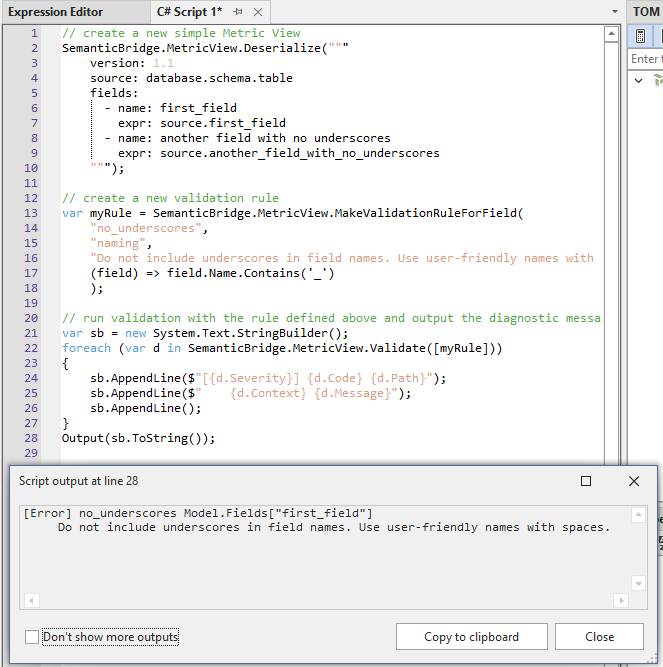
Here's a full script that defines a Metric View inline, and then deserializes and validates it, showing how this rule is used.
// create a new simple Metric View
SemanticBridge.MetricView.Deserialize("""
    version: 1.1
    source: database.schema.table
    fields:
      - name: first_field
        expr: source.first_field
      - name: another field with no underscores
        expr: source.another_field_with_no_underscores
    """);

// create a new validation rule
var myRule = SemanticBridge.MetricView.MakeValidationRuleForField(
    "no_underscores",
    "naming",
    "Do not include underscores in field names. Use user-friendly names with spaces.",
    (field) => field.Name.Contains('_')
    );

// run validation with the rule defined above and output the diagnostic messages
var sb = new System.Text.StringBuilder();
foreach (var d in SemanticBridge.MetricView.Validate([myRule]))
{
    sb.AppendLine($"[{d.Severity}] {d.Code} {d.Path}");
    sb.AppendLine($"    {d.Context} {d.Message}");
    sb.AppendLine();
}
Output(sb.ToString());
Output
[Error] no_underscores Model.Fields["first_field"]
     Do not include underscores in field names. Use user-friendly names with spaces.
You can see that one of the Metric View fields has an underscore in its name. When you run the script, you can see one diagnostic message after validating with the rule we defined. You can see the details that are provided in the diagnostic message:
- Code: the name you assign to your rule
- Context: not set by these helpers
- Message: the message you defined in the rule
- Path: a representation of where you find that object in the Metric View
- Severity: set to Error by default with these helpers
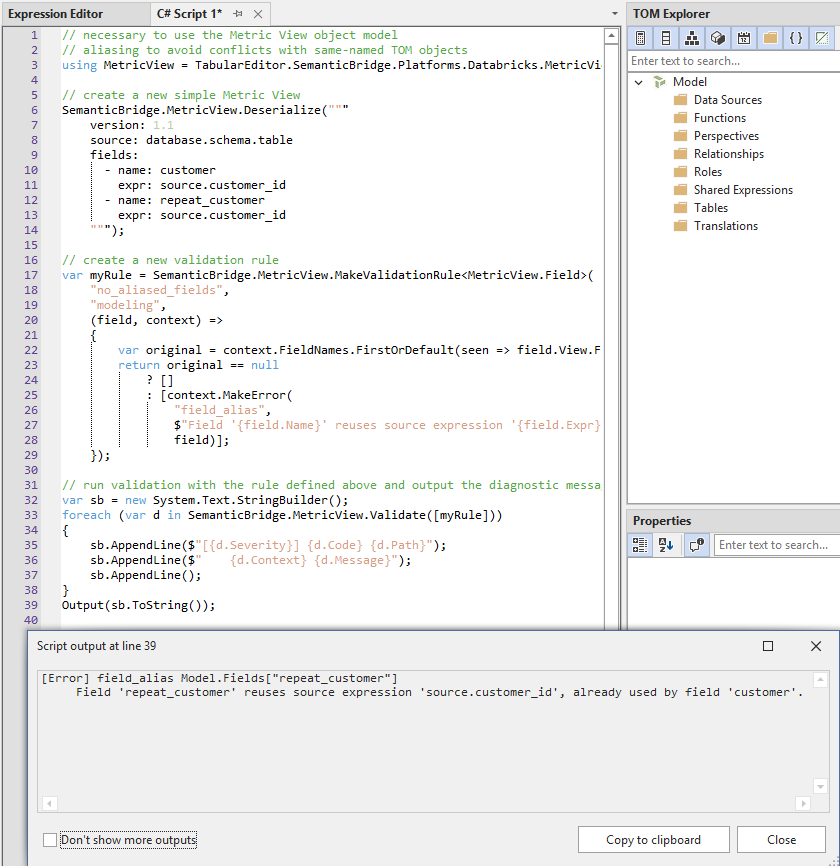
If you want more control over the diagnostic message and more flexibility in the function for your validation, you can use MakeValidationRule mentioned above to make a contextual validation rule.
// necessary to use the Metric View object model
// aliasing to avoid conflicts with same-named TOM objects
using MetricView = TabularEditor.SemanticBridge.Platforms.Databricks.MetricView;

// create a new simple Metric View
SemanticBridge.MetricView.Deserialize("""
    version: 1.1
    source: database.schema.table
    fields:
      - name: customer
        expr: source.customer_id
      - name: repeat_customer
        expr: source.customer_id
    """);

// create a new validation rule
var myRule = SemanticBridge.MetricView.MakeValidationRule<MetricView.Field>(
    "no_aliased_fields",
    "modeling",
    (field, context) =>
    {
        var original = context.FieldNames.FirstOrDefault(seen => field.View.Fields[seen].Expr == field.Expr);
        return original == null
            ? []
            : [context.MakeError(
                "field_alias",
                $"Field '{field.Name}' reuses source expression '{field.Expr}', already used by field '{original}'.",
                field)];
    });

// run validation with the rule defined above and output the diagnostic messages
var sb = new System.Text.StringBuilder();
foreach (var d in SemanticBridge.MetricView.Validate([myRule]))
{
    sb.AppendLine($"[{d.Severity}] {d.Code} {d.Path}");
    sb.AppendLine($"    {d.Context} {d.Message}");
    sb.AppendLine();
}
Output(sb.ToString());
Output
[Error] field_alias Model.Fields["repeat_customer"]
     Field 'repeat_customer' reuses source expression 'source.customer_id', already used by field 'customer'.
This helper method requires you to pass the object type as a type parameter, and the validation function now is a two-parameter function, defined with the signature (metricViewObject, context).
The first parameter is the Metric View object that the rule is evaluated for.
The second parameter is an IReadOnlyValidationContext.
This context object holds collections with the names of already-checked objects;
this means we can use it to inspect only objects already validated.
The context object also has helper methods to make a new diagnostic message;
the benefit here is that your message doesn't have to be a hard-coded string,
but can include properties of the object you are checking.
We use MakeError, and the context object also includes a MakeWarning.
You can see in this example that we include in the message both the offending field and the field it aliases.
Validation rule best practices
It is a good idea to make many simple rules, rather than fewer, more complex rules.
The validation process is very light-weight, so there are not performance concerns from a proliferation of rules.
For example, if you want to make sure that Metric View field names are not camelCased, not kebab-cased and not snake_cased, it is better to make three separate rules, rather than trying to check for each of those conditions in a single rule.
This allows each rule to be simple, and for the messages to be very specific, and therefore more easily actionable.
In general, once you have a rule that catches a specific issue, it is better to leave that alone, rather than editing it. If you find that the rule is missing some condition you'd like to catch, just add a new, small, simple rule to catch that new condition.
You can save many different rules in a C# script for re-use with different Metric Views.
Because a loaded Metric View is accessible in multiple scripts you can save C# scripts that only define rules and then call SemanticBridge.MetricView.Validate, and re-use those validation scripts easily.
See the image below, where the script on the left, "deserialize-mv.csx" has already been run, to load a Metric View to Tabular Editor.
Then, the second script, on the right, "run-rules.csx", is run second to validate.
This second script could be one that you keep around for all of your Metric Views.
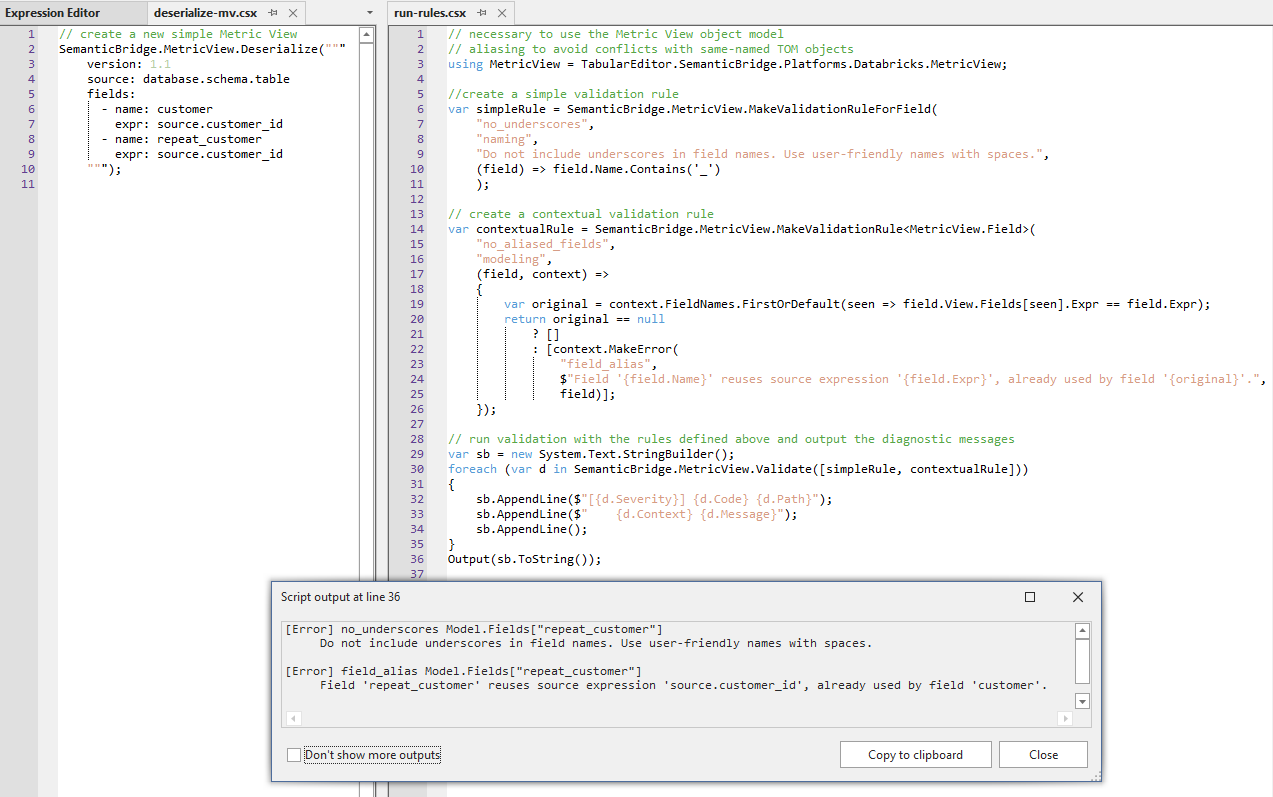
The scripts are copied below for convenience, but are just rearrangements of scripts we saw above.
"deserialize-mv.csx"
// create a new simple Metric View
SemanticBridge.MetricView.Deserialize("""
    version: 1.1
    source: database.schema.table
    fields:
      - name: customer
        expr: source.customer_id
      - name: repeat_customer
        expr: source.customer_id
    """);
"run-rules.csx"
// necessary to use the Metric View object model
// aliasing to avoid conflicts with same-named TOM objects
using MetricView = TabularEditor.SemanticBridge.Platforms.Databricks.MetricView;

//create a simple validation rule
var simpleRule = SemanticBridge.MetricView.MakeValidationRuleForField(
    "no_underscores",
    "naming",
    "Do not include underscores in field names. Use user-friendly names with spaces.",
    (field) => field.Name.Contains('_')
    );

// create a contextual validation rule
var contextualRule = SemanticBridge.MetricView.MakeValidationRule<MetricView.Field>(
    "no_aliased_fields",
    "modeling",
    (field, context) =>
    {
        var original = context.FieldNames.FirstOrDefault(seen => field.View.Fields[seen].Expr == field.Expr);
        return original == null
            ? []
            : [context.MakeError(
                "field_alias",
                $"Field '{field.Name}' reuses source expression '{field.Expr}', already used by field '{original}'.",
                field)];
    });

// run validation with the rules defined above and output the diagnostic messages
var sb = new System.Text.StringBuilder();
foreach (var d in SemanticBridge.MetricView.Validate([simpleRule, contextualRule]))
{
    sb.AppendLine($"[{d.Severity}] {d.Code} {d.Path}");
    sb.AppendLine($"    {d.Context} {d.Message}");
    sb.AppendLine();
}
Output(sb.ToString());
Output
[Error] no_underscores Model.Fields["repeat_customer"]
     Do not include underscores in field names. Use user-friendly names with spaces.

[Error] field_alias Model.Fields["repeat_customer"]
     Field 'repeat_customer' reuses source expression 'source.customer_id', already used by field 'customer'.